Create Campaign
Complete guide to creating advertising campaigns in MageAds.
Campaign Creation Process
Creating a campaign involves several steps. Let's walk through the complete process.
Step 1: Campaign Type Selection
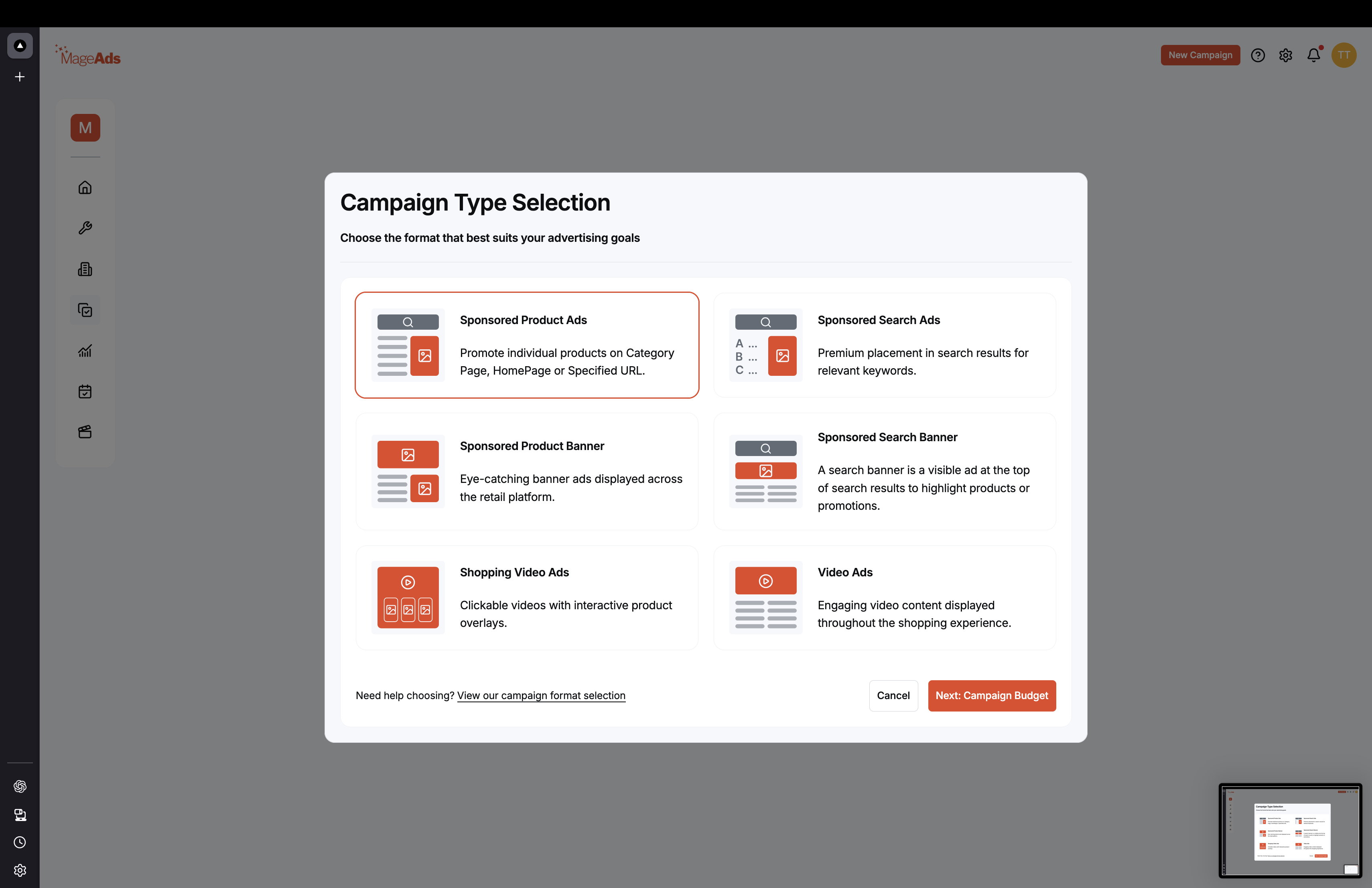
Choose the advertising format that best suits your goals:
Available Campaign Types
1. Sponsored Product Ads
- Promote individual products on Category Page, HomePage, or Specified URL
- Best for: Product visibility and sales
2. Sponsored Search Ads
- Premium placement in search results for relevant keywords
- Best for: Brand awareness in search
3. Sponsored Product Banner
- Eye-catching banner ads displayed across the retail platform
- Best for: Brand visibility and promotions
4. Sponsored Search Banner
- Search banner at the top of search results to highlight products or promotions
- Best for: Search visibility
5. Shopping Video Ads
- Clickable videos with interactive product overlays
- Best for: Product demonstrations
6. Video Ads
- Engaging video content displayed throughout the shopping experience
- Best for: Brand storytelling
Click "Next: Campaign Budget" to continue.
Step 2: Select Advertiser (Optional)
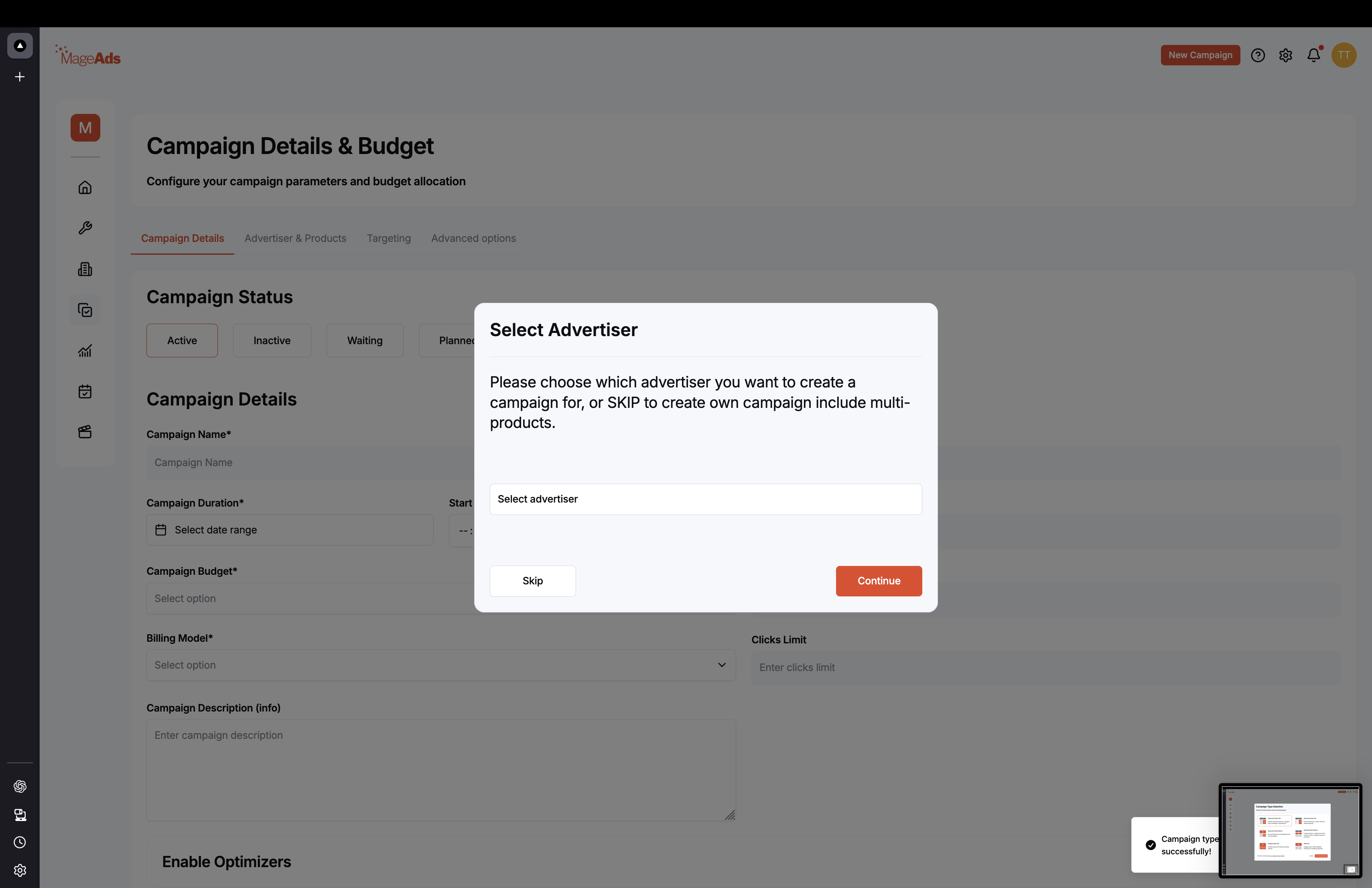
Choose which advertiser you want to create a campaign for:
- Select advertiser - Choose from existing advertisers
- Skip - Create own campaign with multiple products (AutoPromo)
Click "Continue" to proceed.
Step 3: Campaign Details & Budget
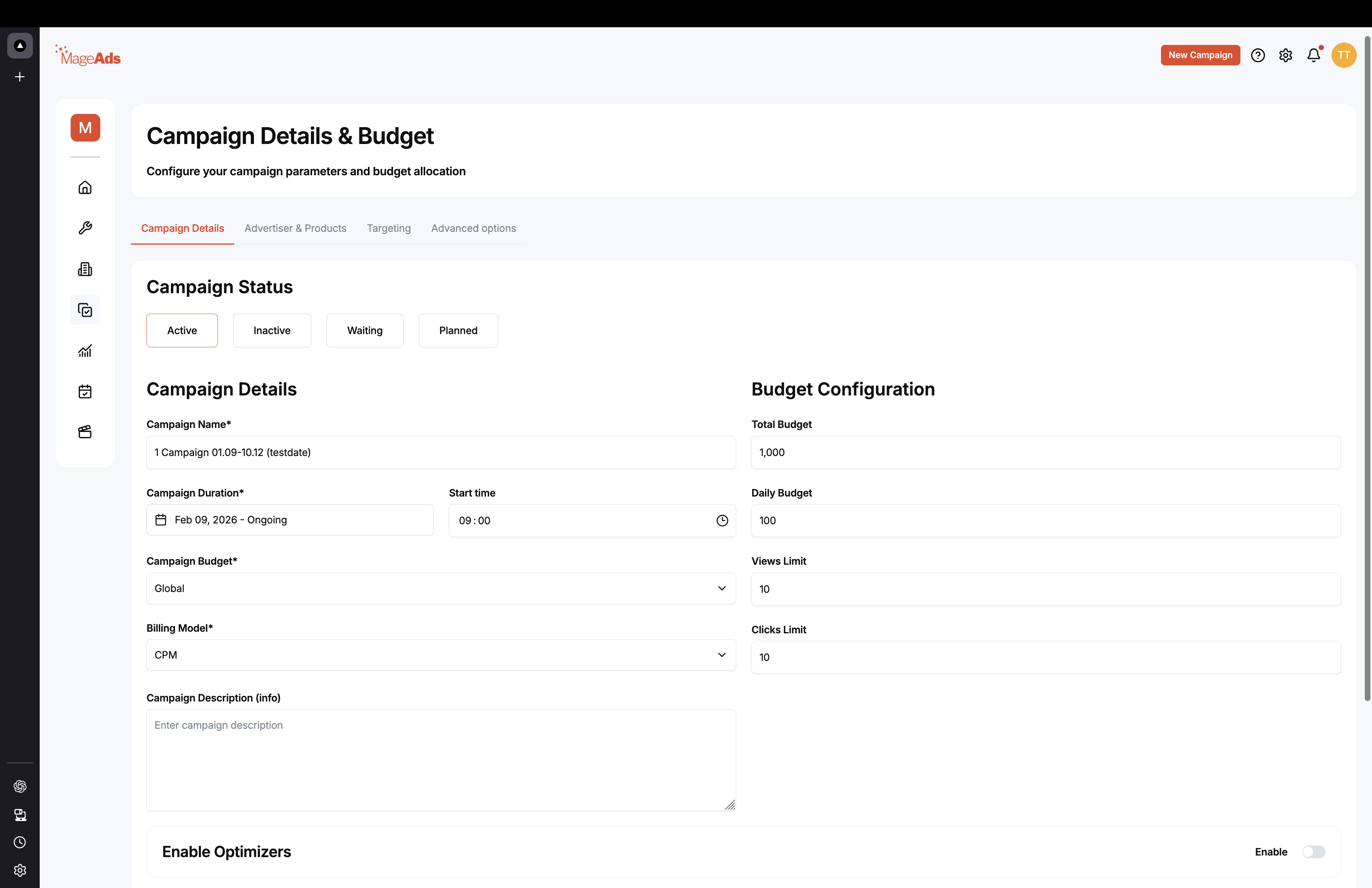
Campaign Status
Choose the initial campaign state:
- Active - Campaign starts immediately (if within date range)
- Inactive - Campaign is paused
- Waiting - Scheduled to start later
- Planned - In planning phase
Campaign Details
Campaign Name* Enter a descriptive name for your campaign (e.g., "Summer Sale 2026")
Campaign Duration*
- Select start and end dates
- Set start time (e.g., 09:00)
Campaign Budget*
- Global - Total budget for entire campaign
- Or select custom budget allocation
Billing Model* Choose how you'll be charged:
- CPM - Cost per thousand impressions
- CPC - Cost per click
- HYBRID - Combination of CPM and CPC
Campaign Description (info) Add notes or details about the campaign (optional)
Budget Configuration (Right Panel)
Total Budget Enter the maximum budget for the campaign
Daily Budget Set daily spending limit to control pace
Views Limit Maximum number of impressions (optional)
Clicks Limit Maximum number of clicks (optional)
Enable Optimizers
Toggle on to enable automatic campaign optimization algorithms.
Step 4: Advertiser & Products
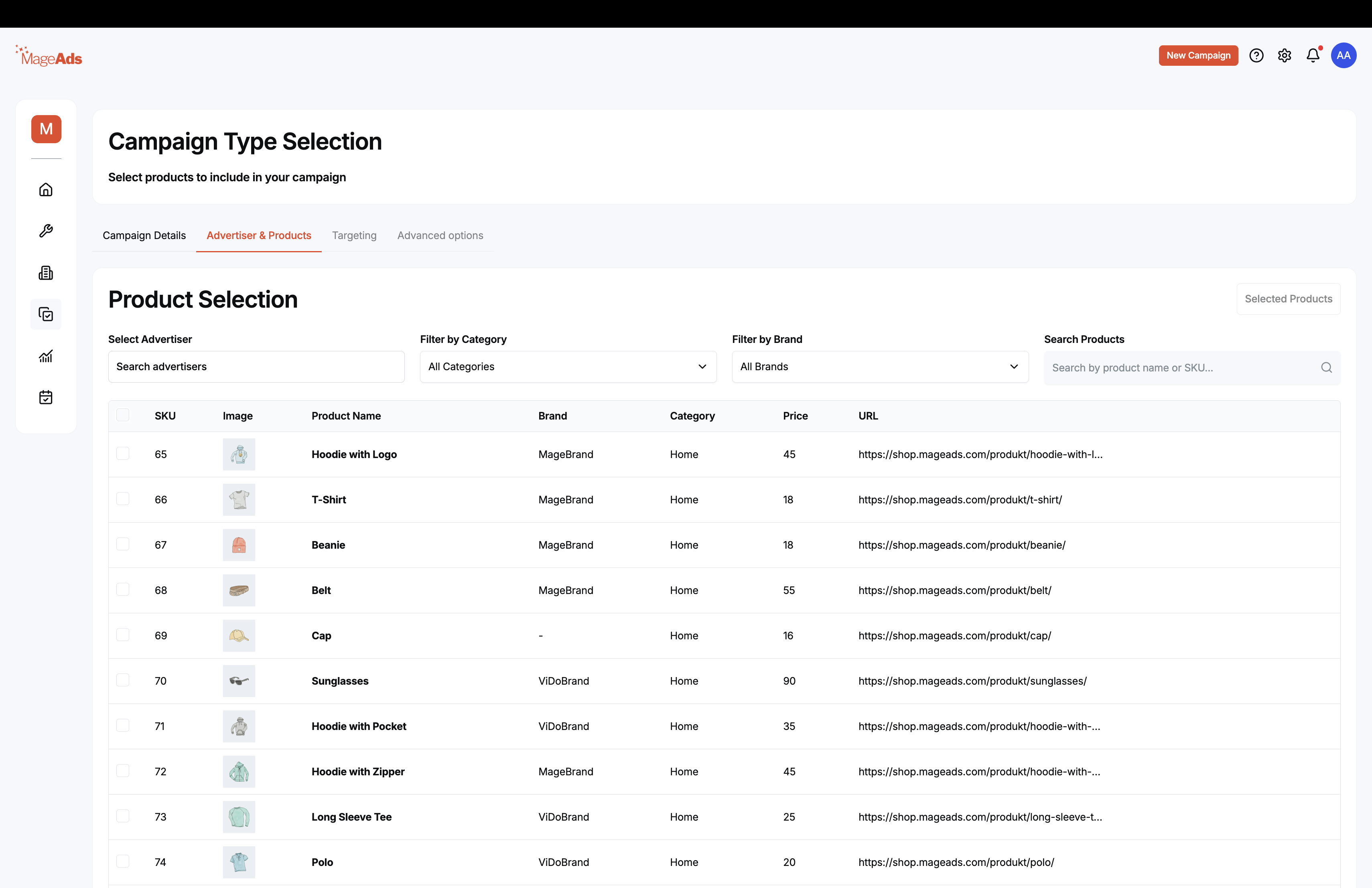
Product Selection
Select Advertiser Search and choose the advertiser (if not already selected)
Filter by Category Narrow down products by category
Filter by Brand Filter products by brand name
Search Products Search by product name or SKU
Product Table
The table shows available products with:
- SKU - Product identifier
- Image - Product thumbnail
- Product Name - Full product name
- Brand - Product brand
- Category - Product category
- Price - Product price
- URL - Product page link
Select the products you want to advertise.
Click "Selected Products" to review your selection.
Step 5: Targeting
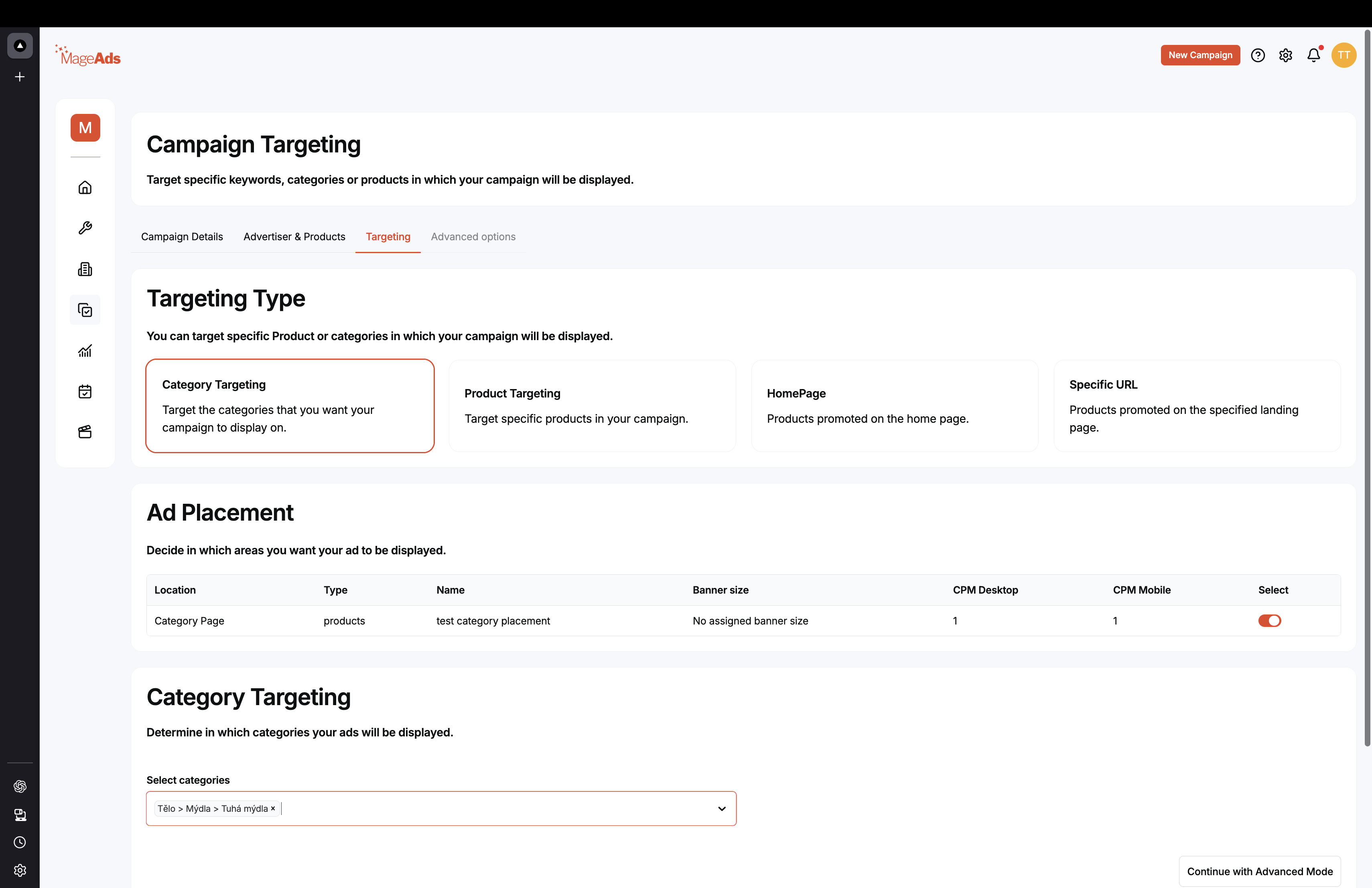
Targeting Type
Choose how you want to target your ads:
Category Targeting
- Target categories where your campaign will display
- Best for: Contextual relevance
Product Targeting
- Target specific products in your campaign
- Best for: Related products
HomePage
- Products promoted on the home page
- Best for: Maximum visibility
Specific URL
- Products promoted on a specified landing page
- Best for: Custom targeting
Ad Placement
Select where ads will be displayed:
| Location | Type | Name | Banner Size | CPM Desktop | CPM Mobile | Select |
|---|---|---|---|---|---|---|
| Category Page | products | test category placement | No assigned | 1 | 1 | ☑️ |
Category Targeting (if selected)
Select categories Choose target categories from the dropdown (e.g., "Telo > Mydla > Tulsi mydla")
Click "Continue with Advanced Mode" or proceed to next step.
Step 6: Advanced Options
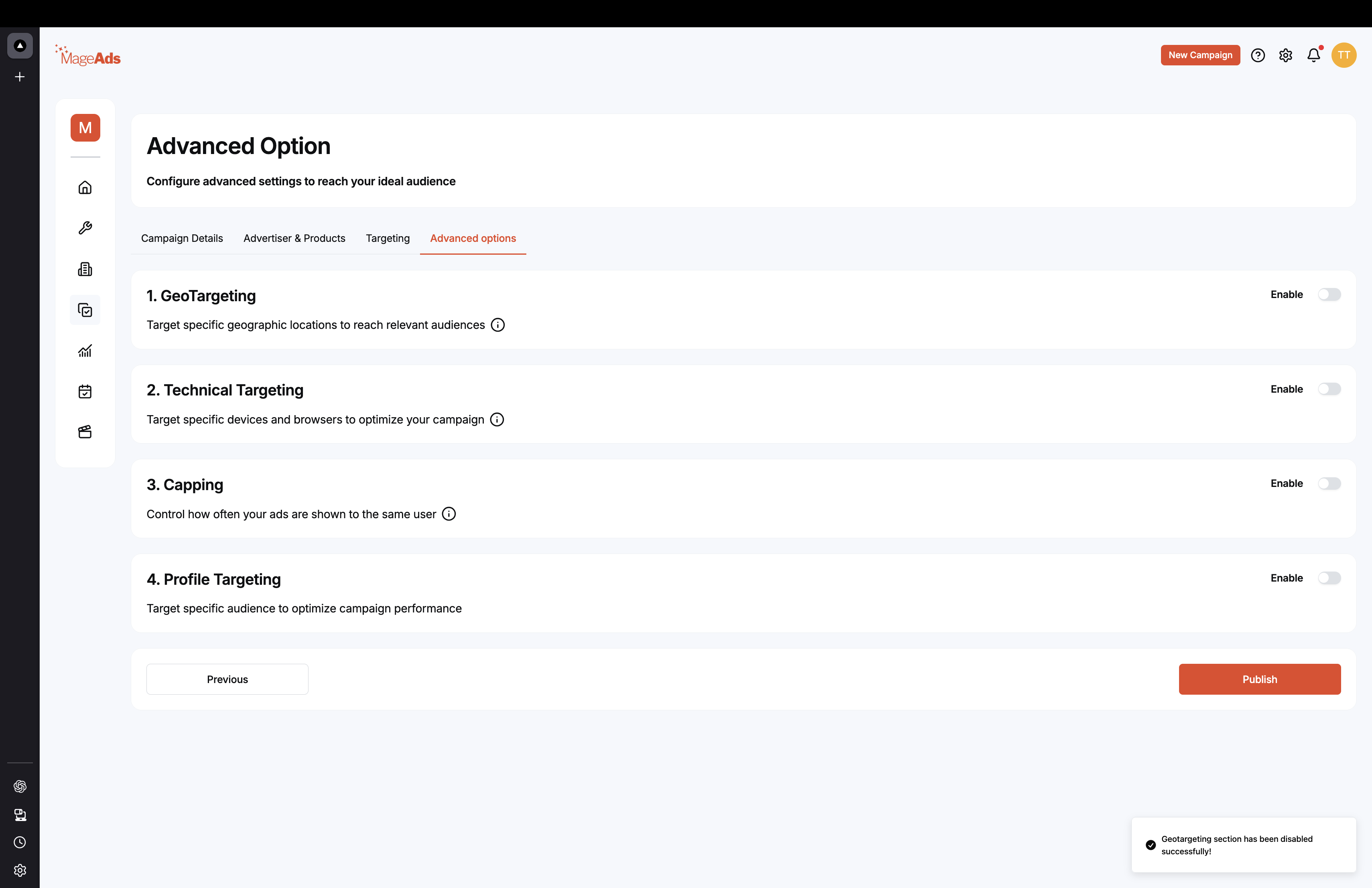
Configure advanced targeting settings:
1. GeoTargeting
Target specific geographic locations to reach relevant audiences
- Enable toggle to activate
2. Technical Targeting
Target specific devices and browsers to optimize your campaign
- Enable toggle to activate
3. Capping
Control how often your ads are shown to the same user
- Enable toggle to activate
4. Profile Targeting
Target specific audience to optimize campaign performance
- Enable toggle to activate
Click "Previous" to go back or "Publish" to finalize.
Step 7: Publish Campaign
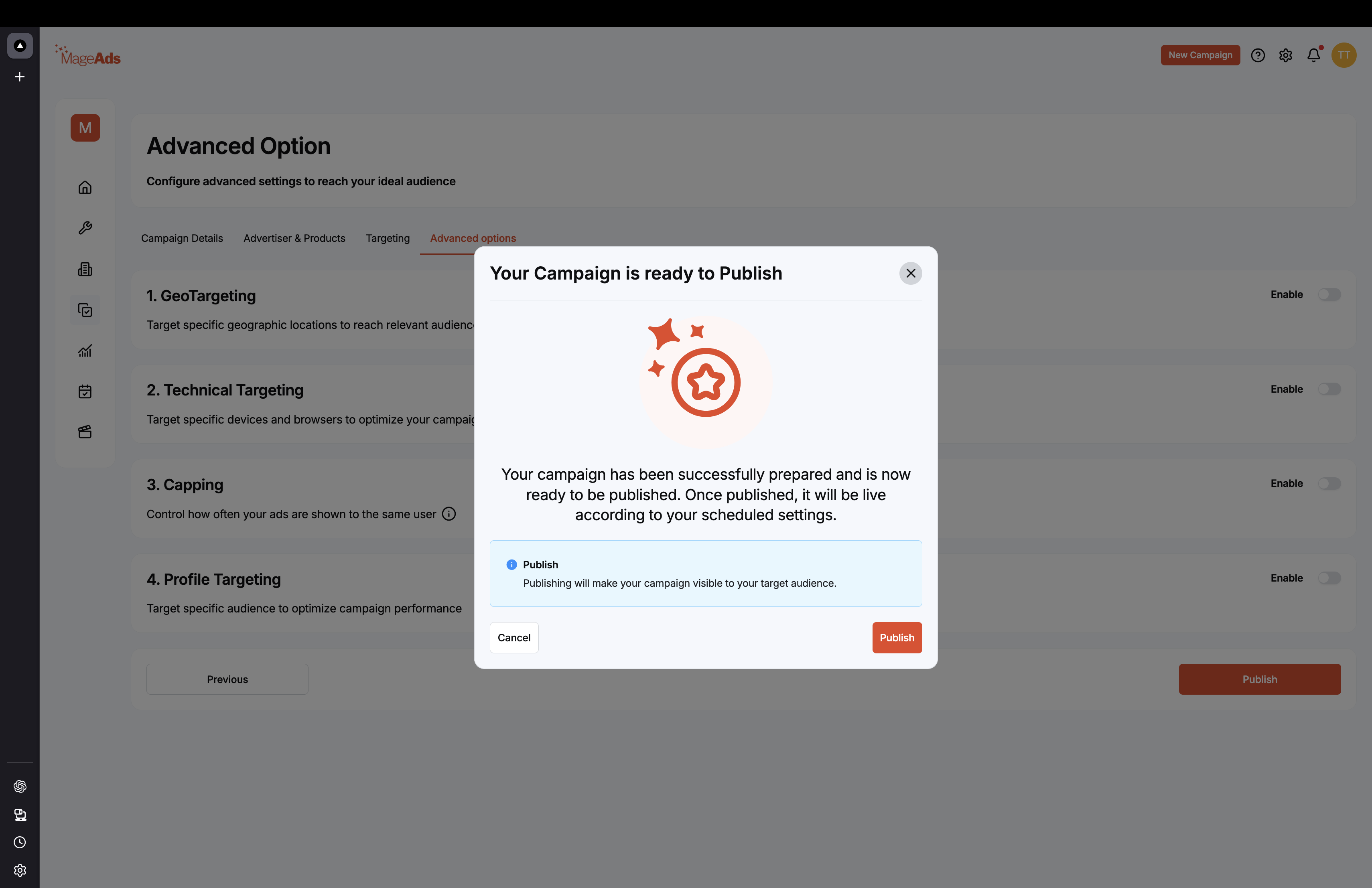
Final Confirmation
Before publishing, review:
- Campaign settings
- Budget allocation
- Product selection
- Targeting options
Publish Options
Publish Publishing will make your campaign visible to your target audience.
Click "Publish" to make the campaign live according to your scheduled settings.
Click "Cancel" if you need to make changes.
Campaign Type: Media (Display/Video)
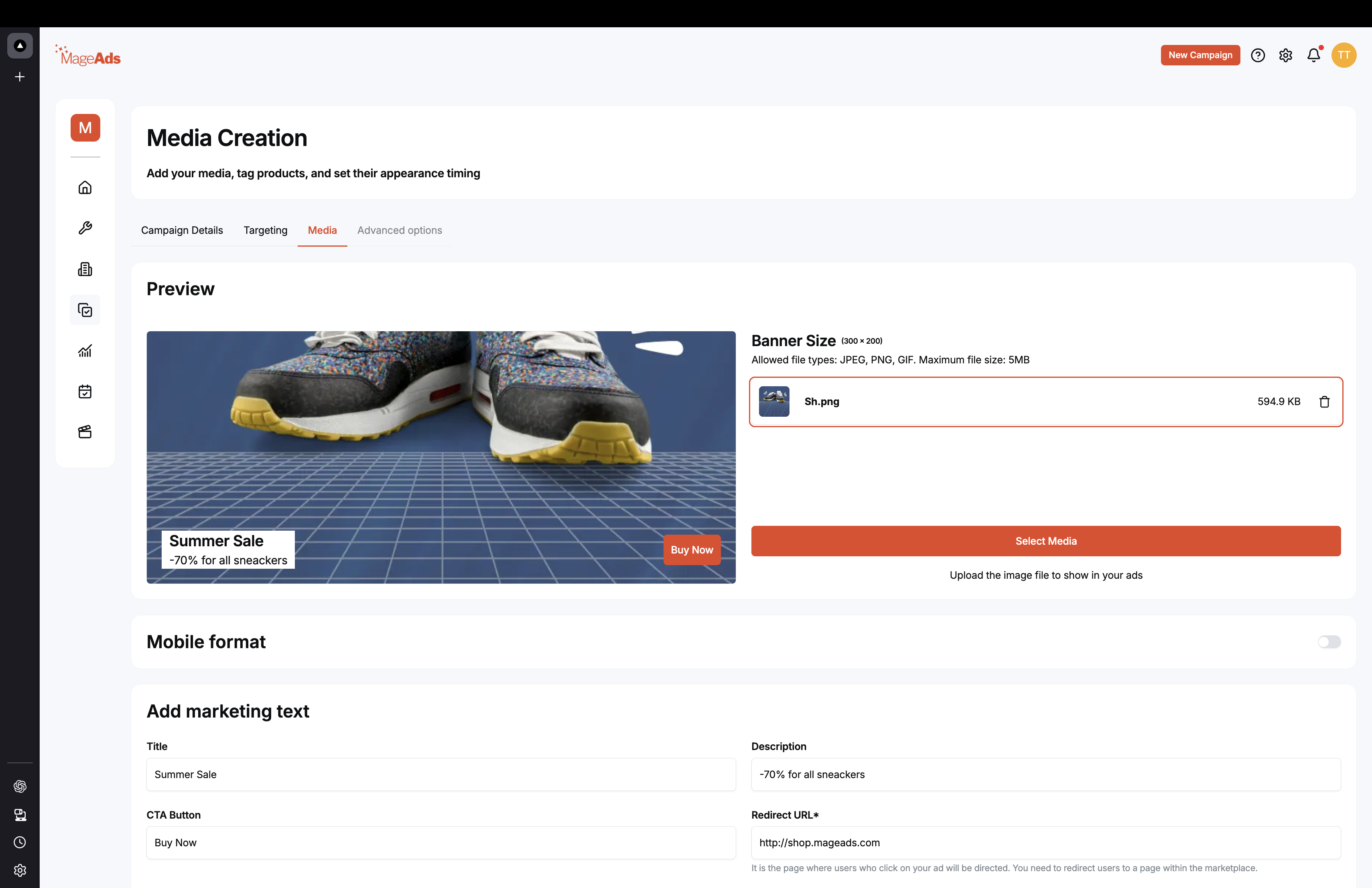
For Display and Video campaigns, you'll also configure:
Preview
See how your banner will look:
- Banner size specifications
- Desktop and mobile previews
Mobile Format
Toggle on to enable mobile-specific creative
Add Marketing Text
Title Enter the ad headline (e.g., "Summer Sale")
Description Add promotional text (e.g., "-70% for all sneakers")
CTA Button Set the call-to-action text (e.g., "Buy Now")
Redirect URL* Enter the destination URL (e.g., "http://shop.mageads.com")
Media Upload
Select Media button to upload:
- Banner images
- Video files
Allowed file types: JPEG, PNG, GIF
Maximum file size: 5MB
Campaign Management
Once published, campaigns appear in the main dashboard table where you can:
- Monitor performance metrics
- Pause/Resume campaigns
- Edit campaign settings
- View detailed analytics
Best Practices
✅ Start with clear goals - Know what you want to achieve
✅ Set appropriate budgets - Don't overspend initially
✅ Target precisely - Better targeting = better performance
✅ Monitor regularly - Check metrics and optimize
✅ Test different formats - Find what works best
Troubleshooting
Campaign not showing?
- Check campaign status is "Active"
- Verify dates are correct
- Ensure budget hasn't been depleted
Low performance?
- Review targeting settings
- Adjust bids if needed
- Try different ad formats
Next Steps
Need help? Contact support at info@mageads.com